
· Serhii Siryk · Development · 7 min read
Automating Authenticated Websites with Chrome DevTools MCP and Claude Code
Say you’re building a full-stack app and something breaks when a user clicks a button — maybe a form submission, an API call, a state update. You know something’s wrong, but not where. Is it a JavaScript error in the frontend? A failed network request? A 500 from the backend? Normally you’d open DevTools yourself, reproduce the issue, dig through the console and network tab, then cross-reference your server logs. It takes a while.
With Chrome DevTools MCP — released by Google in September 2025 — you can hand that investigation to Claude instead. You describe the symptom: “clicking the Submit button on the checkout page doesn’t do anything.” Claude navigates to the page, opens the console, clicks the button, and looks at what actually happens. If there’s a JavaScript exception, it traces it back to the source. If the button fires a network request that comes back with a 422 or 500, Claude captures the full request and response — headers, payload, error body — and tells you whether the problem is in what the frontend sent or what the backend returned.
It doesn’t stop at identifying the error. Claude can cross-reference the API response with the code it already knows about and give you a concrete diagnosis: “the backend is rejecting the request because the userId field is missing from the payload — the frontend is sending user_id instead.” That’s the kind of thing that can eat an hour of your morning if you’re doing it manually.
The same workflow applies to subtler issues — a component that renders incorrectly for logged-in users, a race condition that only shows up after a specific sequence of actions, a network request that’s technically succeeding but returning stale data. Claude becomes something closer to a junior engineer who can sit in front of the browser and actually investigate — not just read code and guess.
There’s one catch with the standard setup, though: it spins up Chrome with a fresh, temporary profile every time. That’s fine for public pages, but the moment your app requires a login, the browser has no session. This guide walks through the one extra step that fixes that.
The Key: A Separate Browser Profile
The solution is to give Chrome a dedicated, isolated profile just for debugging — a separate folder on disk where Chrome stores its own cookies, sessions, and credentials, completely independent from your main browser. Think of it as a second Chrome installation that only Claude touches.
This became necessary starting with Chrome 136, when Google tightened security around remote debugging. The remote debugging port can no longer be enabled on your default Chrome profile — Chrome simply ignores the flag if you try. The reason is real: an open debugging port exposes the browser to any process running on your machine. If that were your everyday profile, a malicious app could silently connect and drain every cookie and session token you have.
The isolated profile sidesteps this cleanly. You point Chrome at a dedicated directory using the --user-data-dir flag (more on that in a moment), and Chrome creates a fresh profile there with its own encryption keys. Log into your staging environment, your internal tools, whatever you need Claude to access — those sessions persist across restarts, and your main profile never enters the picture.
A few ground rules worth keeping in mind: stick to development and testing services in this profile, never open banking or personal email through it, and close Chrome when you’re done for the day — the debugging port closes with it.
Setup (Takes About 5 Minutes)
Step 1: Launch Chrome with Remote Debugging Enabled
Close any existing Chrome windows first. Then open a terminal and run:
/Applications/Google\ Chrome.app/Contents/MacOS/Google\ Chrome \
  --remote-debugging-port=9222 \
  --user-data-dir="$HOME/.chrome-debug-profile"
The --remote-debugging-port=9222 flag opens a local debugging endpoint on port 9222. The --user-data-dir flag tells Chrome where to store cookies, sessions, and history for this profile — Chrome creates the folder automatically on first run.
Step 2: Configure Claude Code
Add the Chrome DevTools MCP server via Claude Code’s CLI:
claude mcp add --transport stdio chrome-devtools \
-- npx -y chrome-devtools-mcp@latest \
--browserUrl=http://127.0.0.1:9222
The --browserUrl parameter tells the MCP server to connect to your already-running Chrome instance, rather than launching a new one. The -- separator distinguishes Claude Code’s flags from the MCP server’s arguments. No config files to edit, no restart needed.
Step 3: Verify It Works
Try a simple test prompt:
Navigate to https://google.com and capture a screenshot.
If everything’s wired up correctly, Claude will control the Chrome window and return a screenshot. You can watch the browser update in real time. For a more thorough test:
Analyze the performance of https://google.com
Claude will load the page, record a performance trace, and report back with findings.
Making It Easier to Launch
Typing that Chrome command every morning gets old fast. Here are a few better options, from simple to most polished:
Shell script
Create chrome-debug.sh:
#!/bin/bash
/Applications/Google\ Chrome.app/Contents/MacOS/Google\ Chrome \
  --remote-debugging-port=9222 \
  --user-data-dir="$HOME/.chrome-debug-profile" \
  > /dev/null 2>&1 &
Make it executable with chmod +x chrome-debug.sh, then run it with ./chrome-debug.sh. The > /dev/null 2>&1 & part runs Chrome silently in the background.
Shell alias
Add this to your ~/.zshrc or ~/.bashrc:
alias chrome:debug="/Applications/Google\ Chrome.app/Contents/MacOS/Google\ Chrome --remote-debugging-port=9222 --user-data-dir=\"$HOME/.chrome-debug-profile\" > /dev/null 2>&1 &"
Reload with source ~/.zshrc, then just type chrome:debug whenever you need it. Much less friction.
macOS dock app (the most robust option)
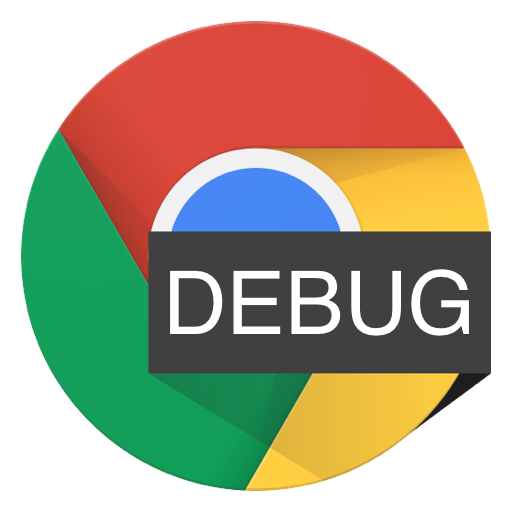
This is worth the extra five minutes. Instead of a script or alias, you create a proper .app that lives in your dock — visually distinct from your regular Chrome, impossible to confuse with it. No terminal needed to launch, and it’s a constant reminder of which profile is open.
First, create the app bundle structure:
mkdir -p /Applications/Chrome\ Debugger.app/Contents/MacOS
Then create the executable script inside it — the filename must match the top-level folder name:
cd /Applications/Chrome\ Debugger.app/Contents/MacOS
touch Chrome\ Debugger
chmod +x Chrome\ Debugger
Open the file in your editor and add:
#!/usr/bin/env bash
exec /Applications/Google\ Chrome.app/Contents/MacOS/Google\ Chrome \
  --remote-debugging-port=9222 \
  --user-data-dir="$HOME/.chrome-debug-profile"
If you’re on Apple Silicon (M1/M2/M3), use this version instead. Chrome ships as a universal binary containing both x86_64 and arm64 code, and launching it from inside bash can cause it to silently pick the wrong architecture and run under Rosetta — noticeably slower. The arch -arm64 flag forces the native binary:
#!/usr/bin/env bash
exec arch -arm64 "/Applications/Google Chrome.app/Contents/MacOS/Google Chrome" \
  --remote-debugging-port=9222 \
  --user-data-dir="$HOME/.chrome-debug-profile"
That’s all macOS needs to treat this as a launchable app. Find it in /Applications, drag it to your dock, and you’re done. If you want a custom icon to make it even more recognizable, copy your icon image, right-click the app → Get Info → click the existing icon thumbnail in the top-left corner of the info panel → paste. macOS swaps it immediately.
Troubleshooting
“Failed to connect to browser” — Make sure Chrome is running with --remote-debugging-port=9222 before you start Claude Code. You can confirm the port is active by visiting http://127.0.0.1:9222 in another browser window. A JSON response listing debugging targets means it’s working.
“Browser closes immediately” — Another Chrome instance is probably running without the debug flags. Quit all Chrome processes and relaunch with the correct command.
“Can’t find Chrome executable” — Chrome typically lives at /Applications/Google Chrome.app/Contents/MacOS/Google Chrome. If you installed it somewhere else, update the path in your scripts.
One More Option: Auto-Connect (Chrome 144+)
If you’re on Chrome 144 or newer (currently in beta at the time of writing), there’s a cleaner alternative to the manual --remote-debugging-port setup. The Chrome DevTools MCP server supports an --autoConnect flag that lets it request a debugging connection to your already-running browser — no command-line flags needed on Chrome’s side.
You enable it once via chrome://inspect#remote-debugging, and Chrome will show a permission dialog each time an MCP server requests access. This is worth exploring if the manual launch approach feels like too much friction, though the --user-data-dir method described above is more reliable for sandboxed environments like Claude Code.
Beyond macOS and Claude Code
Everything here translates to other platforms and agents. On Windows, the Chrome path becomes "C:\Program Files\Google\Chrome\Application\chrome.exe". On Linux it’s typically /usr/bin/google-chrome. The MCP setup command is the same regardless of OS.
The same approach works with Cursor, GitHub Copilot, and Gemini CLI — any MCP-compatible client that accepts a --browserUrl parameter will connect to your running Chrome instance the same way.
The setup takes about five minutes. After that, you have a persistent, authenticated browser that Claude Code can drive — which turns out to be surprisingly useful for anything involving real login sessions, internal tools, or social media research.