
· Serhii Siryk · Development · 4 min read
Toggle Ghostty Terminal Visibility with a Global Shortcut on macOS
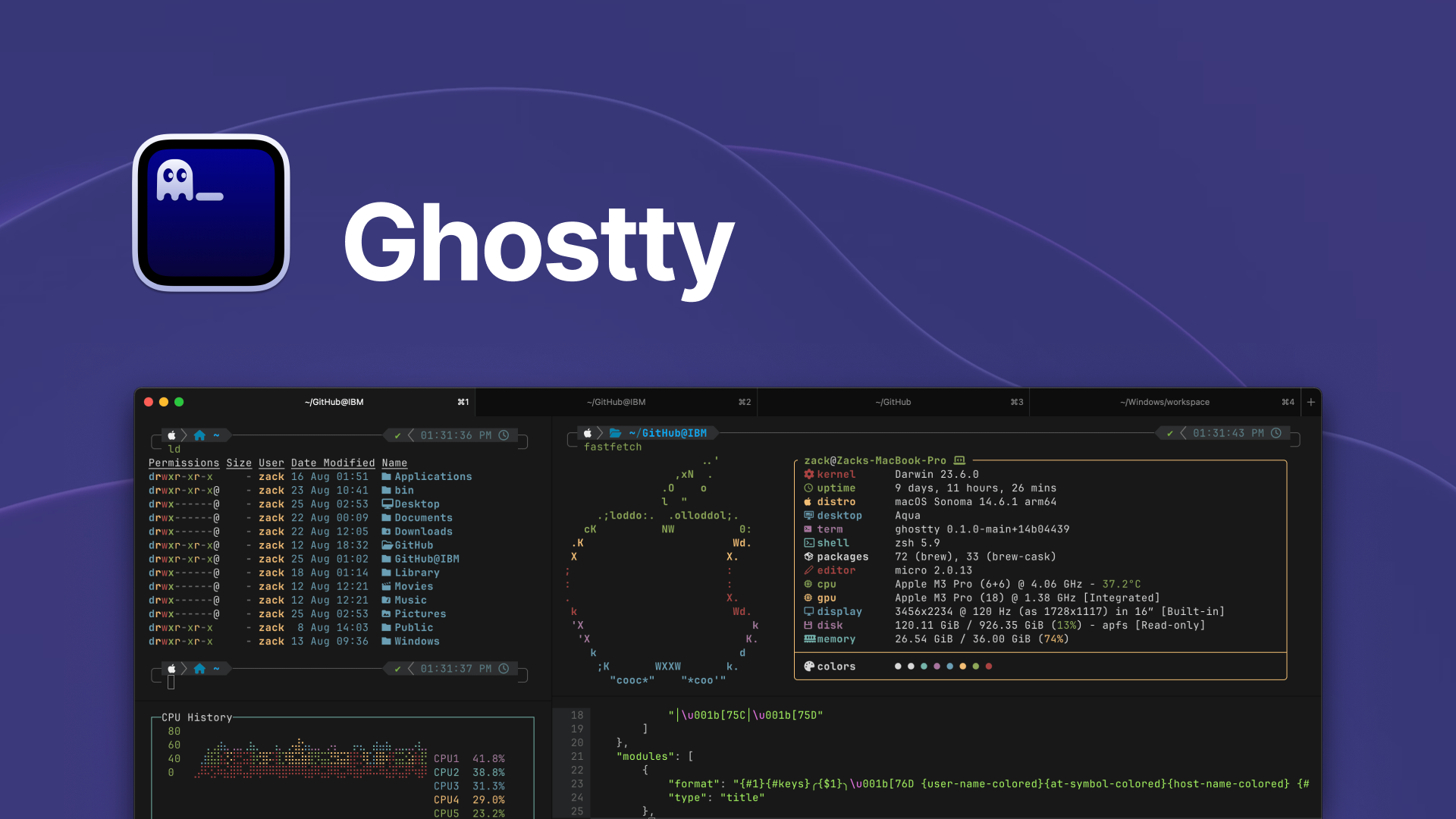
If you’ve landed here, you’re probably a Ghostty user who loves having a terminal one keystroke away — and you’ve already hit the same wall I did.
The Problem with Ghostty’s Built-in Global Shortcut
Ghostty supports a native global shortcut via its config file. The syntax looks like this:
keybind = global:ctrl+y=toggle_visibility
It works — until you close the app. On the next launch, Ghostty scatters all your carefully arranged tabs into separate windows. Every. Single. Time.
On version 1.3.1 (build 15212), none of the variations I tried worked reliably — there are several open issues on the Ghostty tracker that confirm this is a known problem. I moved on and found two solid alternatives that don’t have this drawback — and as a bonus, both solutions are generic enough to work with any app, not just Ghostty.
Option 1: Hammerspoon (Recommended)
Hammerspoon is a powerful macOS automation tool that lets you write Lua scripts to control virtually anything on your system. For our use case, it’s perfect.
What it does
- Pressing
Ctrl + `focuses Ghostty if it’s running in the background. - If Ghostty is already the frontmost app, it hides it (quake-style toggle).
- If Ghostty isn’t running at all, it launches it.
Setup
1. Install Hammerspoon
Download it from hammerspoon.org or install via Homebrew:
brew install --cask hammerspoon
2. Edit your Hammerspoon config
Open (or create) ~/.hammerspoon/init.lua and add:
local bundleID = "com.mitchellh.ghostty"

hs.hotkey.bind({"ctrl"}, "`", function()
    local app = hs.application.get(bundleID)

    if not app then
        hs.application.launchOrFocusByBundleID(bundleID)
        return
    end

    if app:isFrontmost() then
        app:hide()
    else
        app:activate(true)
    end
end)
3. Reload Hammerspoon
Click the Hammerspoon menu bar icon and select Reload Config, or press Cmd + R inside the Hammerspoon console.
4. Grant Accessibility permission
macOS will prompt you to allow Hammerspoon under:
System Settings → Privacy & Security → Accessibility
Add Hammerspoon to the list and toggle it on. This is required for Hammerspoon to send keystrokes and control other applications.
That’s it — your shortcut is live.
Option 2: macOS Automator (No Extra Tools Required)
If you’d rather not install Hammerspoon, macOS has everything you need built in. This approach uses an Automator Quick Action (formerly called a Service) with a short AppleScript.
What it does
Same behaviour as the Hammerspoon version:
- Focuses or hides Ghostty if it’s running.
- Launches Ghostty if it isn’t.
Setup
1. Open Automator
Launch Automator from Spotlight (Cmd + Space, type “Automator”).
2. Create a new Quick Action
Choose File → New, then select Quick Action as the document type.
3. Add a Run AppleScript action
In the search bar on the left, search for “Run AppleScript” and drag it into the workflow canvas. Replace the default content with:
on run {input, parameters}
	tell application "Ghostty"
		if not running then
			activate
			return input
		end if
	end tell

	tell application "System Events"
		set terminalProcess to first process whose name is "Ghostty"

		if frontmost of terminalProcess then
			set visible of terminalProcess to false
		else
			set frontmost of terminalProcess to true
		end if
	end tell

	return input
end run
4. Save the workflow
Save it with a recognisable name, e.g. ToggleTerminal. Automator will save it as ToggleTerminal.workflow.
5. Assign a keyboard shortcut
Go to:
System Settings → Keyboard → Keyboard Shortcuts → Services → General
Find ToggleTerminal in the list and assign your preferred shortcut (e.g. `Ctrl + “).
6. Grant permissions on first run
The first time the workflow runs, macOS will show a prompt:
“Ghostty.app” wants access to control “System Events.app”. Allowing control will provide access to documents and data in “System Events.app”, and to perform actions within that app.
Click OK. You won’t be asked again.
Comparing the Two Approaches
| Hammerspoon | Automator | |
|---|---|---|
| Extra install required | Yes (Hammerspoon) | No |
| Config location | ~/.hammerspoon/init.lua | System Settings → Services |
| Launches Ghostty if not running | ✅ | ✅ |
| Hides when already focused | ✅ | ✅ |
| Permission needed | Accessibility | Automation (System Events) |
| Customisability | High (full Lua scripting) | Limited to AppleScript |
If you’re already using Hammerspoon for other automations, the Lua approach slots right in. If you prefer keeping your system lean, the Automator workflow gets the job done with zero dependencies.
Wrapping Up
Ghostty is an excellent terminal, but its global shortcut implementation has some rough edges on macOS. Both solutions above sidestep the issue entirely — and since neither is Ghostty-specific, you can reuse the same approach to assign a toggle shortcut to any app on your system. Just swap out the bundle ID or app name.
Pick whichever fits your setup, assign Ctrl + `, and enjoy a terminal that appears and disappears exactly when you want it to.