
· Oleksandr Oleniuk · Development · 8 min read
The Tiny Bash Function That Made Nx Less Annoying
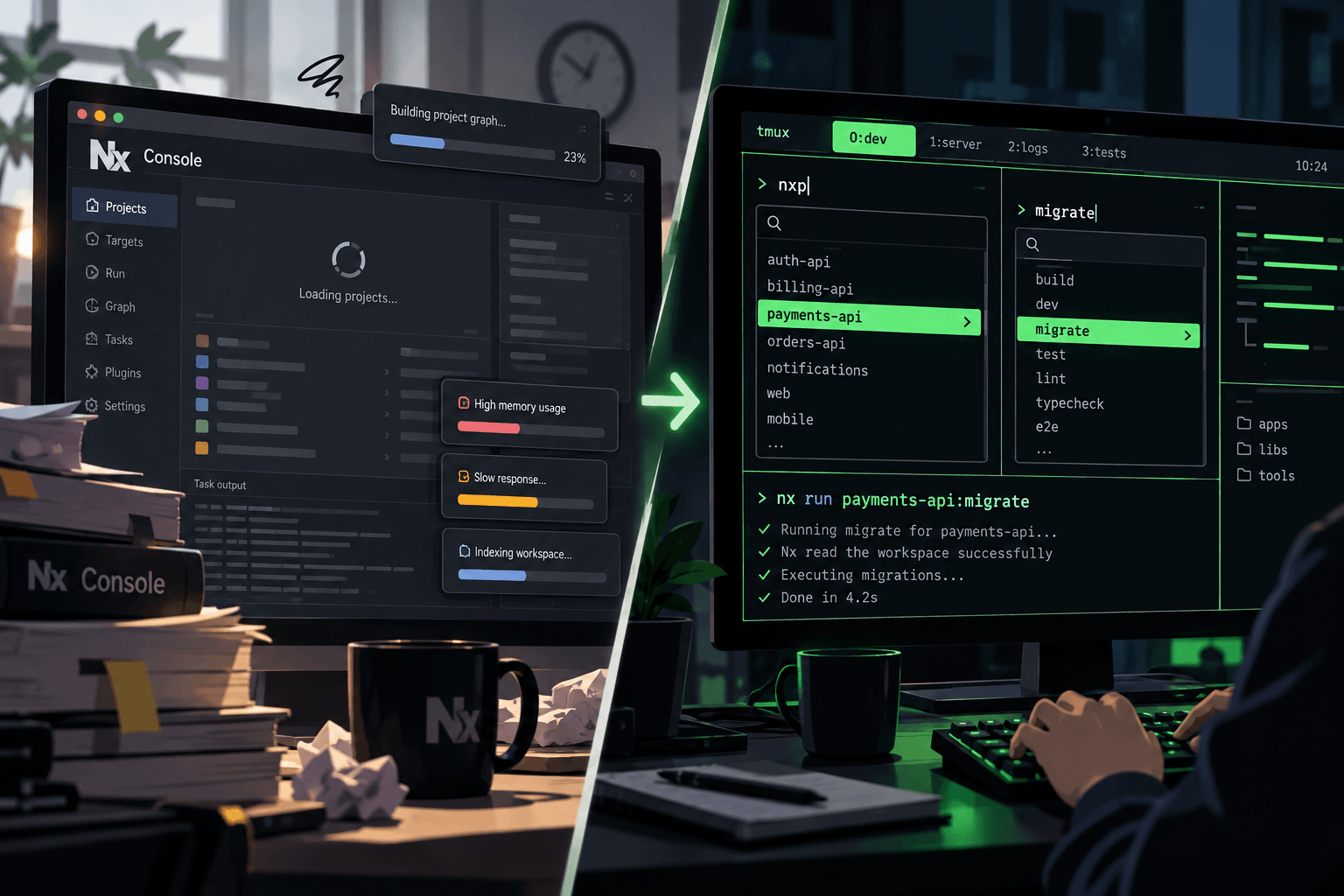
Large monorepos make this familiar: a developer knows what needs to happen — start an API, test a library, run a migration — but not the exact project and target names. Moving into a less familiar part of the codebase means another detour through configuration before the actual work can start.
That friction prompted a small experiment in an Nx monorepo I work with. An IDE task picker helps with discovery, but scanning a project tree still means searching by eye when a few typed characters could narrow the choices. If Nx Console also lags or consumes noticeable resources, launching a simple task starts to feel unnecessarily heavy.
For developers who work primarily in a terminal, there’s another tradeoff: Nx Console launches tasks inside VS Code’s built-in terminal. A workflow built around a separate tmux session now has task output in a different place. Keeping discovery and execution in the same terminal would avoid that detour.
The goal is straightforward: developers should be able to discover a task without memorizing the workspace or leaving their working environment. A few lines of Bash were enough to try the idea: type, pick, run.
The First Version Fit in a Shell Function
With nx, jq, and fzf available on PATH, this was enough to try from the workspace root:
fnx() {
  local project target

  project="$(nx show projects | fzf)" || return

  target="$(
    nx show project "$project" --json |
      jq -r '.targets | keys[]' |
      fzf
  )" || return

  nx run "$project:$target"
}
The Nx CLI supplies the project list and project metadata. The first fzf presents the projects. Then jq extracts the selected project’s target names; a second picker offers those targets, and nx run executes it. Canceling either picker returns from the function.
Nx already had the data. fzf already had the UI. The function only had to connect them.
Exact names are a lousy thing to make developers memorize. A fragment — something about payments, something about migrations — is often easier to recall. Fuzzy matching makes those fragments useful. A few characters shrink the list until the right answer is obvious, without scanning every entry by eye.
For the first version, I assumed the tools were installed and I was at the workspace root. Reasonable assumptions for a function in my own shell. Less reasonable for a shortcut that colleagues should be able to pick up too.
Nobody Memorises the Whole Monorepo
Daily commands become muscle memory. The awkward ones belong to a service another teammate usually maintains, a migration needed twice a month, or a library untouched for weeks. Knowing how a service works matters. Memorizing every target name shouldn’t be the price of working on it.
Targets vary by project. One has serve, another has build and test, and another exposes a custom migration target. A fixed list of shortcuts gets stale; asking Nx gives developers the choices for that project.
For example, type pay, recognize payments-api, then type mig and select migrate. The result is nx run payments-api:migrate, running in the current terminal. The picker makes the command discoverable even when that project isn’t part of your daily work.
As a shared codebase grows, “just remember the command” becomes a poor interface. Reading the available tasks from the workspace gives developers a way to find them without maintaining another list of shortcuts.
Then Build Had More Than One Meaning
Choosing a project and target isn’t always the whole decision. A build target might have both development and production configurations.
The picker needed to handle that without adding a third question to every invocation:
- No named configurations: run the target directly.
- One named configuration: select it automatically.
- Several named configurations: offer a choice with
fzf.
That last choice produces a command such as nx run my-app:build:production.
Automatically selecting a sole configuration is a choice I made in the wrapper; plain nx run has its own default-configuration behavior. An explicitly supplied configuration takes precedence. The picker has no reason to ask a question the command already answers.
My rule for interactive tools: ask only when there’s a decision to make. A prompt with one possible answer is busywork dressed up as an interface. Another press of Enter doesn’t make the tool more helpful.
Count the choices, handle the empty case, and ask when choosing actually helps. That was all the interface this needed.
A Useful Shortcut Should Work Beyond One Laptop
A dotfile function gets a generous deal: one user who knows all its quirks. Sharing it with colleagues changes the expectations. Nobody should need the author’s shell setup or a guided tour just to run a task.
The first assumption was the bare nx command. A workspace can have Nx installed locally without a global executable. The launcher should prefer node_modules/.bin/nx inside the workspace, fall back to nx on PATH, and explain the problem if neither exists. Preferring the local executable also keeps the CLI version aligned with the repository.
The second assumption was location. A developer might invoke the tool from apps/web/src/, several directories below the repository root. Navigating back just to launch a picker would bring the friction straight back. Walking upward to the nearest nx.json lets the launcher find the workspace itself.
Then there are dependencies. The executable uses Bash and needs fzf, jq, and nx. Missing tools deserve a useful error and installation guidance, so a colleague trying the launcher can resolve setup problems without digging through its source. A task picker shouldn’t silently install software on their behalf.
Finally, the picker needs to know when to get out of the way. Supplying a project should skip that question. Supplying a target should skip another. Extra arguments need to reach Nx intact. Someone exploring an unfamiliar project needs the prompts; someone repeating a known command should be able to skip them.
This is the boring work that makes a small tool worth sharing. The fuzzy picker was the easy part; removing the reasons to swear at it took more thought.
A Small CLI, with a Small Job
The result is fuzzy-nx, invoked as fnx. The everyday interface stays short:
fnx                         # Choose a project and target
fnx my-app                  # Choose a target for this project
fnx my-app test              # Supply both; configurations still apply
fnx my-app test --watch      # Forward the extra argument to Nx
Replace my-app and test with names from your workspace. The README covers installation and the remaining options; the commands above cover the everyday workflow.
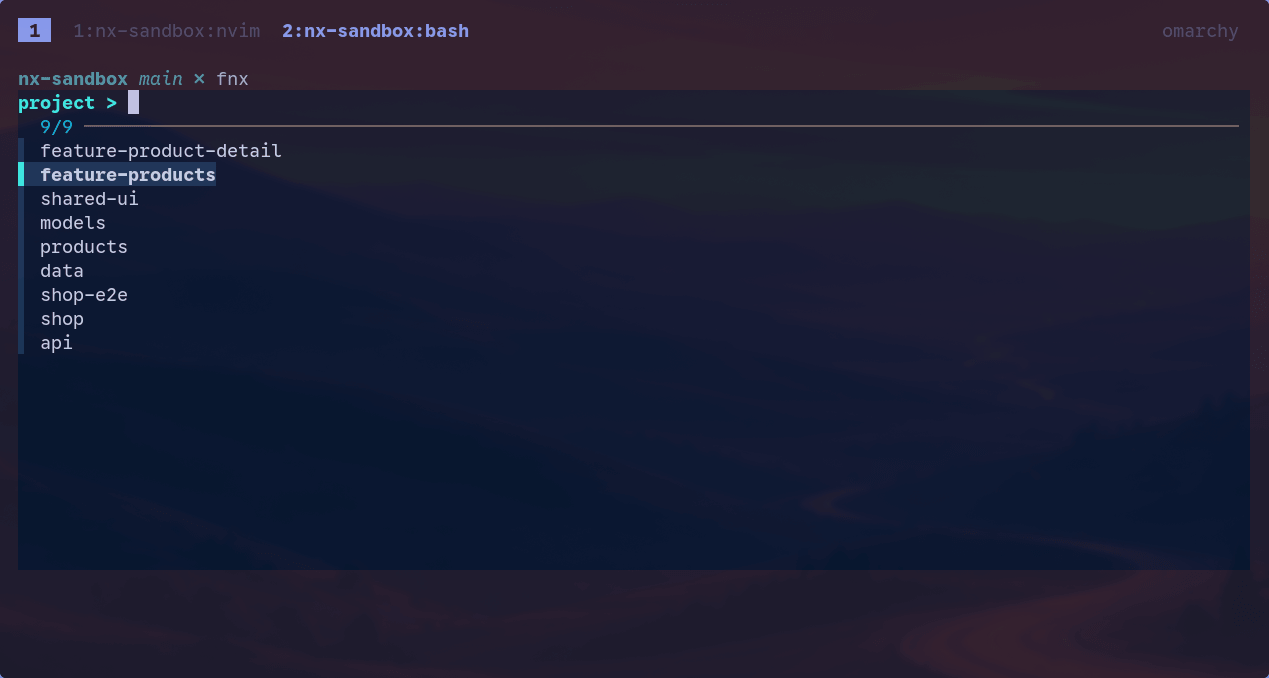
Running fnx starts with the project picker. Here it is in a sample workspace, with feature-products highlighted:
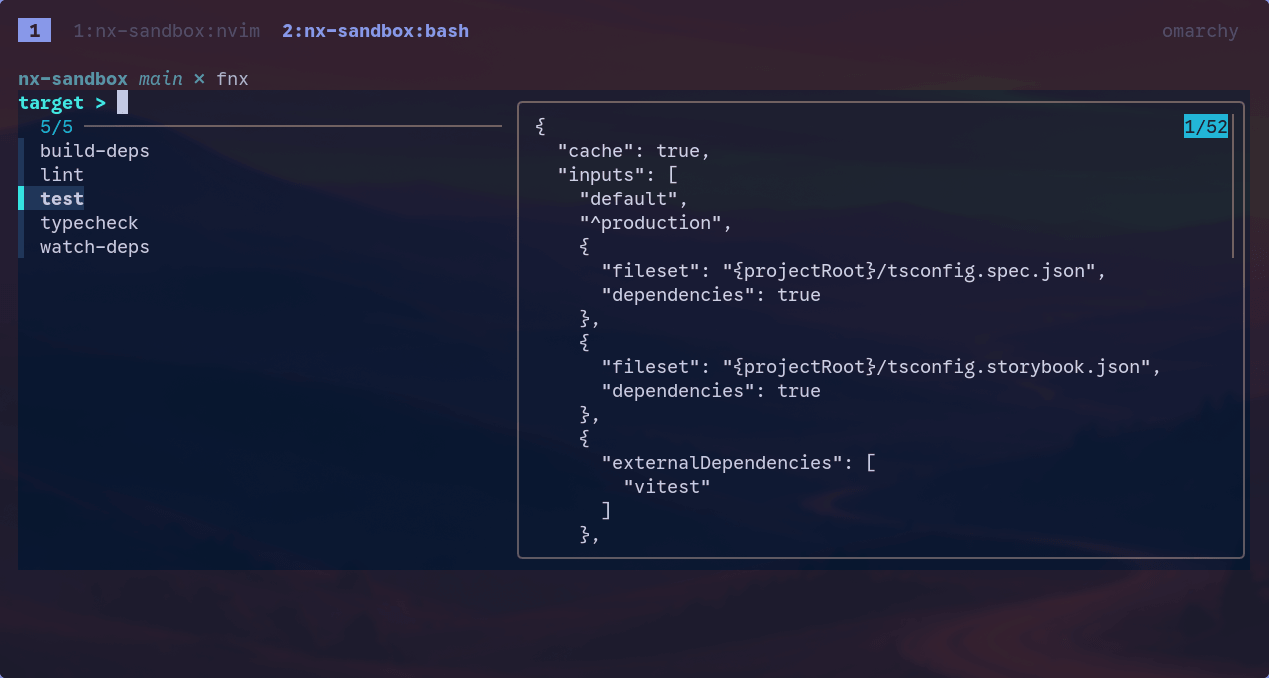
After choosing a project, the next picker shows its targets. The finished CLI also previews the highlighted target’s configuration, so there’s some context before pressing Enter:
Its job ends at choosing a project, target, and configuration, then handing execution back to Nx. Caching, task dependencies, affected calculations, and orchestration belong with Nx. Developers already have a task runner. Adding another one would create more things for the team to understand and maintain.
If the original function does everything you need, keep it. Packaging it into a CLI made it easier to share by removing assumptions about one developer’s setup. More code isn’t an improvement by itself.
If this would help developers on your team, check out fuzzy-nx on GitHub and try it in a shared workspace. Feedback is welcome: a target it handles badly, a confusing prompt, or setup friction a colleague runs into. Open an issue and share what happened — those details help make the tool useful across different repositories and working habits.
fzf Is a UI for Whatever You Can List
We’re probably underusing fzf. File search and shell history are handy, but they barely explain why the tool is useful. It reads candidate lines and writes back a selection. Nothing about that requires the lines to be filenames.
The pattern here is simple:
Nx metadata → jq → fzf → Nx command
The same approach could select a Docker container, a Git branch, an SSH host, or a systemd unit. Get the available choices from the tool that owns them, present the useful part, and feed the selection into the next command.
Even within Nx, there are a couple of natural extensions: pick a project to inspect with nx show, or select several projects for nx run-many. Those could be useful additions, but nx run remains the everyday win: find the task, launch it, get back to work.
There’s very little new machinery here. Nx understands the workspace, jq extracts the names, and fzf handles the interaction. Connecting them makes existing tasks easier for developers to find.
When developers repeatedly scan output and copy names into another command, there’s a small tooling opportunity worth investigating. A personal annoyance can be a useful starting point for improving a shared workflow. The computer already has the list. Let it handle the searching.